Python console and scripts#
TE10 Studio can be driven from Python. The same scripting API works in three places:
| Where | How | prj is |
|---|---|---|
| Python Console (Home tab › Scripting, or Tools › Python Console) | Type a line, press Enter | The project open in the app |
| Run Script... (Home tab, or Tools › Run Script...) | Pick a .py file |
The project open in the app |
A terminal: te10 run script.py |
Without the app's window | Whatever the script opens or creates |
The Python Console#
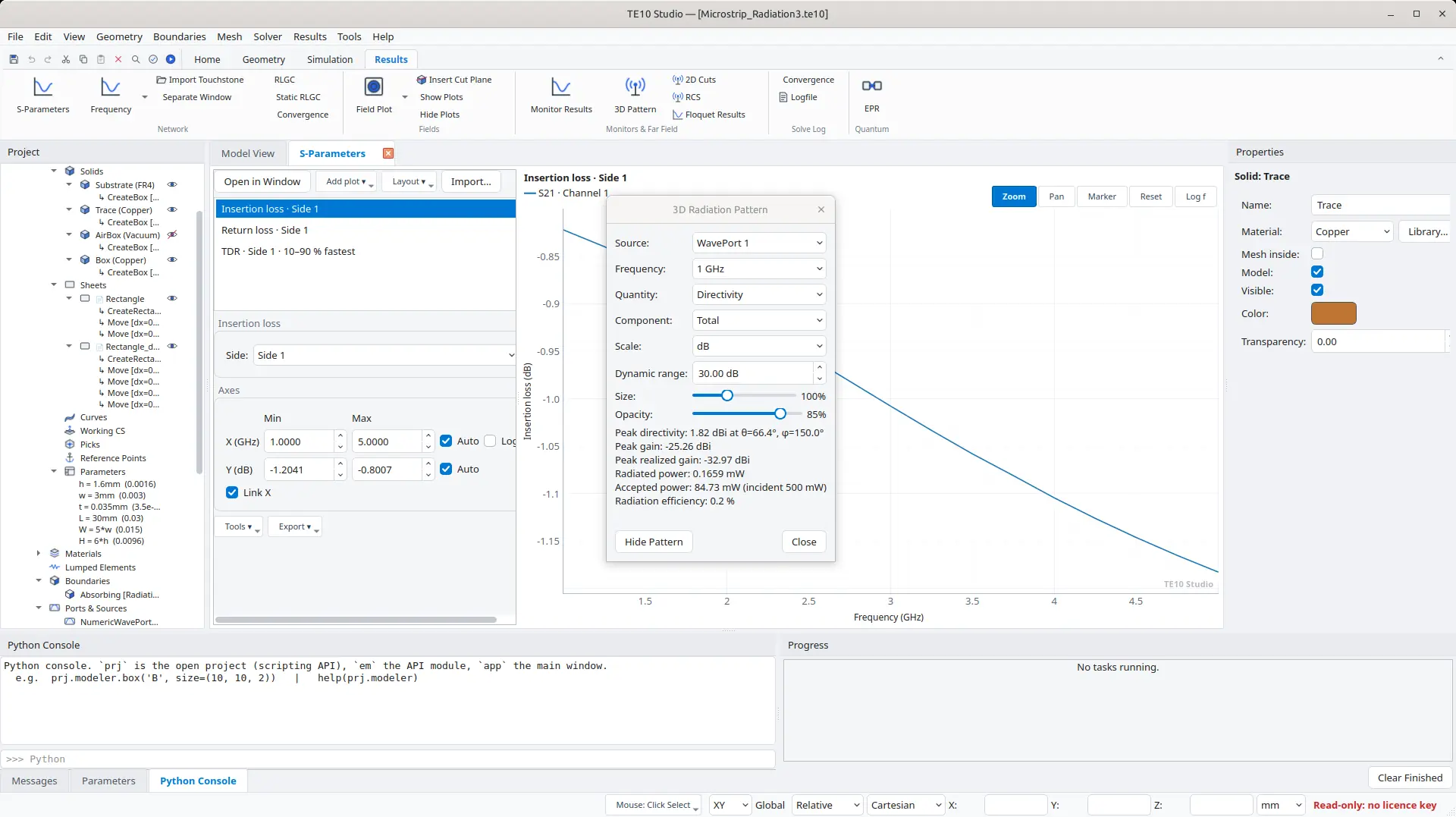
In the console:
prjis the open project (ate10_studio.api.Project),emis the API module andappthe main window.- Every change goes through the app's undo: Ctrl+Z undoes a scripted change too, and the view, tree and Properties update.
help(prj.modeler)lists what an object can do.
prj.variables["w"] = "3mm"
trace = prj.modeler.box("Trace", size=("w", 20, 0.035), origin=("-w/2", 0, 1.6), material="copper")
prj.mesh.length_on("0.5mm", objects=[trace])
print(prj.validate())        # [] when the model is ready to solve
Run Script#
Run Script... runs a whole file against the open project, the same way. Use it for repeated set-up work: building a parametric part, assigning ports to many traces, exporting results of several setups.
Macros#
Tools › Macros holds the built-in RF tools: calculators, port wizards and builders. Each is also a Python function (see RF tools in the API).
Learn the API#
Start with the Scripting API quick start. The examples cover waveguides, microstrip, sweeps, eigenmodes, optimisation and cluster jobs.