Solving in the cloud (AWS)#
TE10 Studio can run a solve on an Amazon Web Services machine instead of your computer. You pay AWS directly, usually a few cents to a couple of dollars per solve. Each solve shows its price before it starts, stops itself after a time limit, and its machine is shut down as soon as the results are back.
You set this up once: about 5 minutes to create an AWS account, then one button in TE10.
1. Create an AWS account#
New AWS accounts get up to $200 in credits: $100 at sign-up and up to $100 more for trying AWS's starter activities (one is launching an EC2 machine, which your first cloud solve does). A small solve costs cents, so the credits cover a lot of trying out. They expire 12 months after you open the account. See AWS Free Tier.
Three choices at sign-up decide how fast and how cheap your cloud solves can be. Get them right now; two of them are hard to change later.
- Use the standard ("advanced") sign-up: https://signin.aws.amazon.com/signup?request_type=register. It asks for an email address, an account name and a root password. Don't use AWS's simplified sign-up (the one that signs you in with a Builder ID or another login and creates "Projects"). Those accounts can't use spot machines (about 70% cheaper), can start machines in only one region, and changing that later can't be undone.
- Choose the Paid plan when it asks for the account plan. The Free plan only starts small 2-core machines. The credits still apply on the Paid plan and pay for your solves before your card is charged.
- That's all you need to do in AWS. TE10's Sign in with AWS (step 2) does the rest: more cores, a spending alert, and TE10's own access key. (To do those by hand instead, see Doing it by hand at the end.)
Already have an account?#
- On the Free plan: click Upgrade plan (console home page banner, or Billing and Cost Management; accounts from the simplified sign-up: AWS Settings, https://settings.aws.com). Your remaining credits carry over and are used first. Click Connect in TE10 again afterwards.
- Made with the simplified sign-up (the console shows Projects and AWS Settings): it works, but only in the region you chose at sign-up and without spot machines. TE10 finds the region and switches to regular machines (about 3 times the price, still well under $1 for most solves). To get spot machines you can either create a standard account (step 1), or use AWS Settings > Projects > Explore advanced features, which can't be undone.
- Part of a company's AWS Organization: the organization may block starting machines. TE10 tells you if so; ask whoever runs the organization to allow EC2 for your account.
TE10 warns you when it can tell your account is on the Free plan: in Connect Cloud (if you
added the optional AWSBillingReadOnlyAccess permission), and before a solve once AWS has turned a
machine down for that reason.
2. Connect TE10: Sign in with AWS#
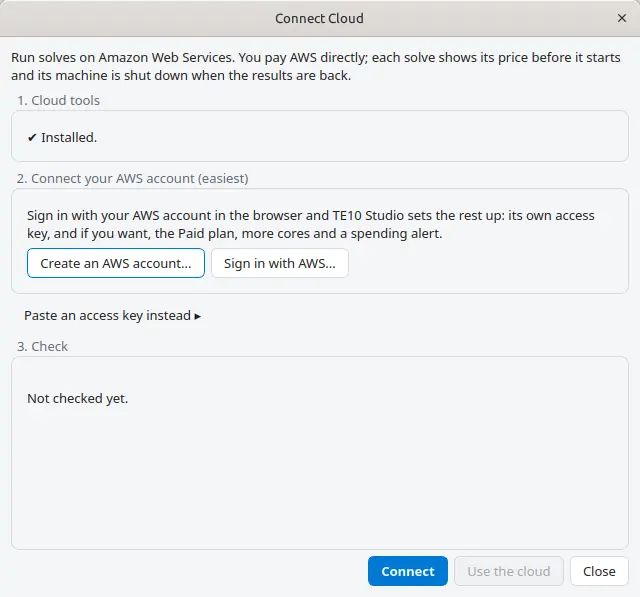
- On the Simulation tab, open Remote ▾ (HPC group), or On: This computer ▾ under Run, and choose Connect Cloud...
- Click Sign in with AWS... The first time, TE10 installs its cloud tools (a few minutes, about 600 MB). Your browser opens AWS's sign-in page: sign in as usual and click Allow.
- TE10 shows your account (plan, credits left, which regions and machines it can use, and how many cores it may run now) and a short list of what it will set up, all ticked: - Region: the nearest one your account can use. - Upgrade to the Paid plan (only shown on the Free plan; your credits carry over). - Ask AWS for more cores: regular 64 and spot 64 vCPUs (spot only if your account allows it), plus AWS's HPC machines if you tick them. This is free; AWS answers by email, usually within a day, and may grant less at first. - Monthly spending alert: an email when you reach 80% of the amount, or are forecast to go over it. Enter your email address.
- Click Set up. TE10 creates its own AWS user,
te10-studio, with only the permissions cloud solves need, saves its access key (as thete10profile in~/.aws, readable only by you; any key you already had is left alone), makes the changes you ticked, and signs the browser session out again. - When it says ✔ Connected, click Use the cloud. Run now solves in the cloud, and the button reads On: Cloud.
Run Sign in with AWS again any time, for example on a new computer or to ask for more cores.
Spot machines are switched on whenever your account allows them. Accounts made with AWS's simplified sign-up block them; TE10 then shows Unlock spot machines and all regions... AWS doesn't let apps make that change, so the button explains it and opens AWS Settings, where you choose Projects > Actions > Explore advanced features, verify an email and activate (about 5 minutes; it can't be undone, and it removes AWS's spend-limit option, while TE10's spending alert still works). Then click Sign in with AWS again and TE10 picks up spot and the extra regions.
If Connect shows a problem#
| Message | What to do |
|---|---|
| AWS didn't accept the key | Check you copied both keys, or create a new access key. |
| The key works but isn't allowed to start machines | Run Sign in with AWS again, or attach the three policies (see Doing it by hand). |
| Your account can't start machines in X, but it can in Y | Choose region Y and Connect again. |
| …AWS Organization whose policy… blocks this | The organization's management account must detach the blocking service control policy (AWS Organizations > Policies > Service control policies) or allow EC2. |
| …vCPU limit is too low for this machine (your limit is 16 vCPUs) | New accounts can only run a few cores at once (16 on a new Paid account). Pick a smaller machine in Job Options, or ask AWS for more: Service Quotas > Amazon EC2 > Running On-Demand Standard (A, C, D, H, I, M, R, T, Z) instances > Request increase (e.g. 64 or 128). It's free; approval usually takes about a day. |
| Your AWS account is on the Free plan… | Upgrade to the Paid plan (credits still apply), or set the machine type to m7i-flex.large in Job Options for small tests. |
| AWS is still activating this account | Wait (up to a day after sign-up) and try again. |
3. Solve#
Click Run as usual. TE10 meshes the model, picks a machine to fit it, and shows the machine and the most the job can cost before anything starts, for example:
Machine: c6i.xlarge on AWS (us-east-2), about $0.17 per hour. Model: about 66,703 unknowns (including the adaptive passes), 3.6 GB, solved on 2 cores. Your time limit is 2 h (Job Options), so it can't cost more than $0.34. The time and cost estimate appears once the job has started; you can stop it at any time.
Click Yes to start. Once the job has started, the log gives the estimate ("Estimate: about 5 min in all, so about 1 cent") and the job's row in the Progress window shows the time and cost so far next to it, with a Stop button. Automatic sizing may stop the machine sooner than your time limit, which only lowers the cost. The Progress window shows the machine starting, the adaptive passes and the frequency sweep. When it finishes, the results load like a local solve, the machine is deleted, and the log says what it cost ("cost about 1 cent (5 min on c6i.xlarge)"). Keep TE10 open until then. If TE10 is closed, the machine stops itself 10 minutes after the solve ends, and TE10 offers to delete it the next time it starts.
If the model and adaptive settings haven't changed since an earlier solve, TE10 reuses that solve's adapted mesh and skips the adaptive passes; the estimate says so. To always refine from scratch, untick Reuse the adapted mesh in the setup.
Job Options#
Remote ▾ › Job Options... (or On: … ▾ › Job Options...) sets how the cloud machine is chosen:
- Automatic (default): the size comes from the model, at about 60,000 unknowns per core, never bigger than Largest machine (64 vCPUs unless you change it) or your AWS limit.
- By hand: untick Automatic and set the size (vCPUs), memory, number of machines, or an exact
machine type (for example
c6i.8xlarge, or AWS's HPC machines such ashpc6a.48xlarge). - Always: spot machines, region, the time limit (the cost cap) and how soon an idle machine stops.
Clusters have the same window: automatic job size from the model and the cluster's partitions, or cores, nodes, memory, wall time, partition, account and modules set by hand.
Costs#
- Spot machines (the default where the account allows them) cost roughly 70% less, but AWS may stop them when it is busy.
- A solve never runs longer than the time limit (2 h by default), and an idle machine stops after 10 minutes.
- To check nothing is left running, look at EC2 > Instances in the AWS console.
Doing it by hand#
Use this if you'd rather not sign in through TE10, or your company gives you an access key.
More cores: in the AWS console open Service Quotas > AWS services > Amazon Elastic Compute Cloud (Amazon EC2) and choose Request increase at account level for:
| Quota | Ask for | What it allows |
|---|---|---|
| Running On-Demand Standard (A, C, D, H, I, M, R, T, Z) instances | 64 to 128 | regular machines up to that many vCPUs in total |
| All Standard (A, C, D, H, I, M, R, T, Z) Spot Instance Requests | 64 to 128 | the same for spot machines |
| Running On-Demand HPC instances (optional) | 96 or 192 | AWS's HPC machines, e.g. hpc6a.48xlarge (96 cores) |
Quotas are per region: request them in the region you'll solve in (top right of the console).
Spending alert: Billing and Cost Management > Budgets > Create budget > Monthly cost budget.
Access key:
- In the AWS console, open IAM > Users > Create user. Name it, for example
te10. Leave console access off. - Choose Attach policies directly and tick AmazonEC2FullAccess, IAMFullAccess and AmazonS3FullAccess (optional: ServiceQuotasReadOnlyAccess and AWSBillingReadOnlyAccess, so TE10 can show your limits, plan and credits).
- Open the new user, Security credentials > Create access key > Command Line Interface (CLI).
- In TE10's Connect Cloud, click Paste an access key instead, paste both keys, pick the region, and click Connect.
From the command line#
te10 cloud connect              # store an AWS access key for TE10 (asked here, the secret is not shown)
te10 cloud status               # is the key good, which limits and credits the account has
te10 cloud leftovers            # TE10 machines still running (they cost money), and others in the region
te10 cloud leftovers --delete   # delete TE10's (anything on them not yet downloaded is lost)
te10 solve model.te10 --backend skypilot