Solving on a cluster (HPC)#
TE10 Studio can run a solve on a cluster you already have an account on, from the same Run button. You don't write a job script, and nothing has to be installed on the cluster by an administrator. Solves on a cluster need no extra TE10 license, whatever the number of cores.
You set a cluster up once (about two minutes), then pick it under On: … ▾ (Simulation tab, Run group) whenever you want.
What you need#
- A login to the cluster with SSH: the same
you@login.cluster.eduyou type in a terminal. - The cluster runs Linux on x86-64 (Intel / AMD) processors from 2013 or later, with RHEL / Rocky / Alma 8, Ubuntu 20.04, SLES 15 or newer. TE10 checks this for you. On an older Linux (CentOS 7 and the like) that has Apptainer or Singularity, TE10 runs its solver in a container instead, one node per job.
- On your computer: the OpenSSH client. Windows 10/11, macOS and Linux have it.
Schedulers#
| Scheduler | State |
|---|---|
| Slurm | Tested: one node and several nodes (4 solver processes over 2 nodes, 6 over 3). Job size and queue are chosen automatically. |
| PBS Pro / OpenPBS | Tested on OpenPBS 20, one node and two. Job size and queue are chosen automatically. |
| Grid Engine (SGE / UGE / AGE) | Tested on Son of Grid Engine 8.1.9, one node and two. Job size, queue and parallel environment are chosen automatically. |
| HTCondor | Tested on HTCondor 23 (one machine). Job size is chosen automatically; a job runs on one machine of the pool. |
| Flux | Tested on Flux 0.91 (one node). Job size is chosen automatically. |
| Torque | Tested on Torque 6.1, built from source (one node). Job size and queue are chosen automatically. Moab, the commercial scheduler that usually runs on top of Torque, is not tested; jobs are sent with the same qsub. |
| IBM Spectrum LSF | Supported; not yet run on a live system by us. Set cores, memory and time limit by hand in Job Options. |
| No scheduler (a workstation or cloud machine you log in to) | Tested. The solve runs directly. |
"Tested" means TE10's test solve, a job that fails, and a cancelled job all behave correctly on a real installation of that scheduler. Several nodes are tested on Slurm, PBS and Grid Engine (Torque on one node), over ordinary Ethernet; InfiniBand clusters are not yet tested.
If yours is in a "not yet run" row and something fails, the wizard's test solve shows the scheduler's own message; please send it to us.
1. Add the cluster#
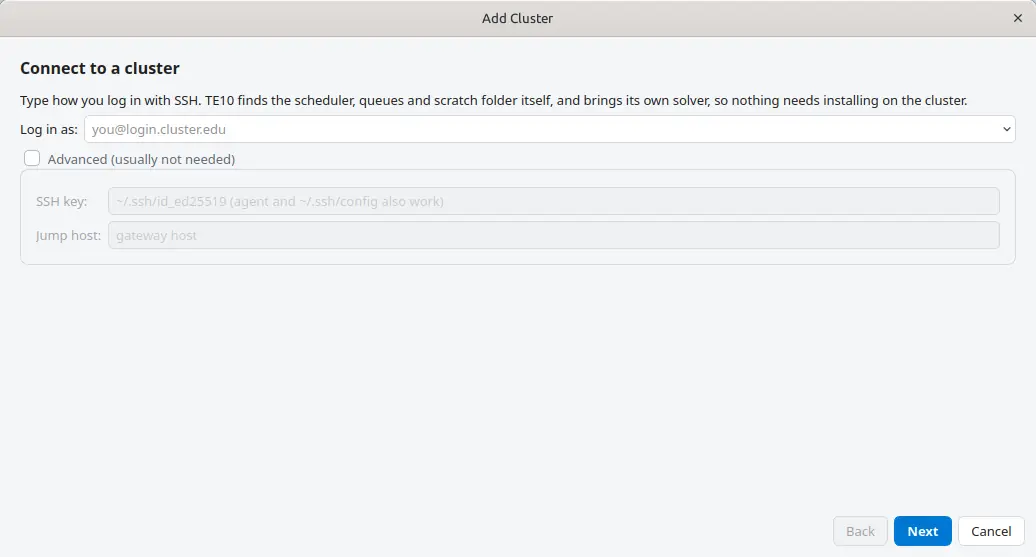
- On the Simulation tab, open Remote ▾ (HPC group) and choose Add Cluster..., or click On: This computer ▾ under Run and choose Add Cluster...
- Type how you log in, for example
you@login.cluster.edu. Hosts from your~/.ssh/configare in the list; picking one brings its key, port and jump host along. Click Next. - Answer the password or code prompt if one appears. TE10 then reads, in one connection: the scheduler, the queues and their limits, your accounts, a scratch folder, and whether its solver can run there.
- Check what it found. Usually nothing needs changing: - Partition: Automatic picks, for each job, the queue that fits and starts soonest. - Account: the allocation jobs are charged to, if your cluster uses them. - Scratch folder: where job files go. TE10 prefers the cluster's scratch space over your home. - Solver: TE10's own (recommended). In a container appears when the cluster's Linux is too old for it directly. The cluster's own Palace, if it has one, lacks TE10's additions (frequency-dependent materials, surface roughness, lossy wave ports and others). - Set up key login: lets later connections skip the password. See Logging in.
- Click Next. TE10 uploads its solver (once, about 70 MB) and runs a small test solve through the scheduler, then checks the answer. Ready means everything works: connection, solver, scheduler and results download.
2. Solve#
Choose the cluster under On: … ▾ and press Run. TE10 meshes on your computer, picks the cores, memory, time limit and queue from the mesh, uploads the job and submits it. The Progress window shows the queue state, each adaptive pass and the sweep. When the job finishes the results download and the plots update by themselves.
You can close TE10 while a job is queued or running. Open the project again and it picks the job up; the first time it asks before connecting to the cluster.
Job Options... (same menu) switches off automatic sizing and lets you set cores, nodes, memory, time limit, queue, account and extra scheduler lines by hand. They apply to that cluster for every project.
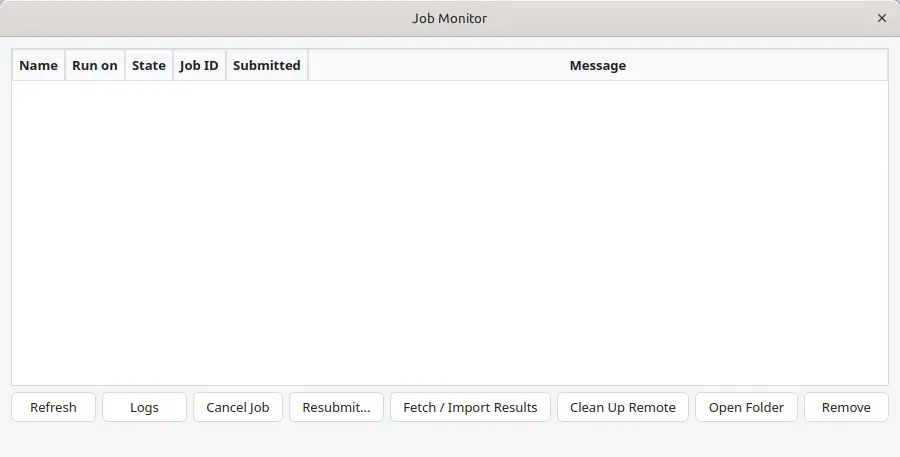
Job Monitor lists every job of the project, with its log, and can cancel a job, download its results again, or delete its files on the cluster. Resubmit... runs a failed cluster job again with twice the time limit or 1.5 times the memory (more nodes if one node hasn't that much).
If the scheduler refuses a job#
Some sites want jobs written their own way. When the scheduler refuses a job and says why, TE10
rewrites the job that way, sends it again, and tells you what it changed in the console and Job
Monitor. Where the change is a rule of the site, it is remembered for that cluster (shown in
Edit Clusters... as Learned from this scheduler) and shared along with a .te10cluster file.
| The scheduler says | TE10 does |
|---|---|
| the queue doesn't exist | uses the scheduler's default queue (refresh the cluster to update the list) |
| the time limit is more than the queue allows | asks for the queue's limit instead |
| the memory can't be given / may not be asked for | sends the job without a memory request |
| cores must be asked per node (Slurm) | does so from then on |
| a QOS is required or wrong (Slurm) | looks up your QOS and uses it from then on |
| the account isn't accepted (Slurm) | tries your other accounts |
| the parallel environment doesn't exist (Grid Engine) | picks one the cluster has |
Anything else is shown to you in the scheduler's own words. For options TE10 has no setting for,
Job Options > Extra scheduler lines adds your own lines to the job script, for example
--gres gpu:1 ; --exclusive on Slurm or -l place=scatter:excl on PBS.
If your site wants the whole job script its own way (a login shell, module load lines before
anything else, a site wrapper), Edit Clusters... > Job Script Template... lets you write it. Put
{directives} on its own line where TE10's scheduler lines go and {run} where the job starts; the
window shows what a job will look like. The template stays on your computer and is not exported.
If a job waits or fails#
The Progress window and Job Monitor say why, in the scheduler's terms made plain:
| You see | What to do |
|---|---|
| over a limit set for your account or group | Wait for your other jobs, or ask for fewer cores in Job Options. |
| the time limit is longer than this queue allows | It will never start. Lower the time limit or pick another queue, cancel the job, solve again. |
| this account can't be used in this queue | It will never start. Choose another account or queue, cancel, solve again. |
| the nodes it needs are reserved or down | Usually maintenance; it starts afterwards. |
| It hit its time limit | Job Monitor > Resubmit... > Twice the Time Limit. |
| It ran out of memory | Job Monitor > Resubmit... > 1.5× the Memory. |
| A cluster node failed / the cluster took its nodes | Nothing: TE10 submits the job again once by itself. If it fails again, solve again later. |
| the scheduler questions the account or queue | Often clears by itself within a minute. If not, choose another account or queue, cancel, solve again. |
Plain-word reasons are read on Slurm, PBS, Grid Engine, HTCondor and Flux. On LSF, open the job's log
in Job Monitor. An HTCondor job on hold won't start until it is released (condor_release) or
cancelled.
Logging in#
- Password every time: tick Set up key login in the wizard. TE10 makes its own key
(
~/.ssh/te10_ed25519), adds it to your~/.ssh/authorized_keyson the cluster and logs in once with it to check. Some sites ignore that file; TE10 then tells you and keeps asking for the password. - One-time codes / Duo (MFA): TE10 shows the cluster's prompt in a small window. One login is shared by everything TE10 does with that cluster until ten minutes after its last use, on Windows, macOS and Linux, so you answer it once per session.
- Sites that don't accept your own keys (some national labs use short-lived certificates or
their own login tool): log in the site's way so that
ssh yourclusterworks in a terminal, give the host an entry in~/.ssh/config, and pick that entry in the wizard. - Jump host: under Advanced in the wizard, or
ProxyJumpin~/.ssh/config.
TE10 never stores your password.
What TE10 puts on the cluster#
| Where | What | Remove with |
|---|---|---|
~/.te10/solver/<version>/ |
TE10's solver, about 250 MB unpacked. If your home folder is full or over quota it goes to <scratch folder>/.te10-solver/ instead. Versions not used for 30 days are removed automatically. Clusters that use the container keep its image (about 110 MB) in images/ there. A group can keep one copy for everyone: set Solver folder in Edit Clusters to a project folder you all can read (it travels in exported .te10cluster files). |
rm -rf ~/.te10 |
the scratch folder you chose, …/te10-jobs/<job>/ |
one folder per job: mesh, settings, log, results. TE10 checks there is room before uploading. | Job Monitor > Clean Up Remote, or delete the folder |
~/.ssh/authorized_keys |
one line ending in TE10 Studio, only if you chose key login |
delete that line |
Nothing keeps running on the cluster when TE10 is closed, and no port is opened.
Sharing a cluster's settings with colleagues#
Once a cluster works for you, Edit Clusters... > Export... writes a .te10cluster file with the
host, scheduler, queues, scratch location, modules and extra scheduler lines. It holds no user name,
key or account. A colleague uses Edit Clusters... > Import..., types their user name on the
cluster, picks their account if needed, and tests.
An organisation can put such files in a shared folder and set the environment variable
TE10_CLUSTER_PROFILES to it; Import then opens there. From a terminal:
te10 cluster export big --to big.te10cluster
te10 cluster shared                              # files in the shared folder
te10 cluster add alice --from big.te10cluster    # alice = your user name on the cluster
Edit Clusters... also shows the queues TE10 found for each cluster; Refresh From Cluster reads them again when the site changes its limits.
A cluster in the cloud#
AWS ParallelCluster, Azure CycleCloud and Google Cluster Toolkit clusters are ordinary Slurm clusters to TE10: add them with Add Cluster... like any other. For single machines started and stopped per solve, see Solving in the cloud.
From the command line or a script#
te10 cluster add you@login.cluster.edu         # find everything, test solve, save (asks for the password here)
te10 cluster add mycluster-alias --name big --account proj-rf --key-login
te10 cluster list                              # the clusters you added
te10 cluster test big                          # the test solve again
te10 cluster refresh big                       # read the queues again (limits change)
te10 cluster remove big

te10 solve model.te10 --backend big            # solve there and wait
te10 solve model.te10 --backend big --no-wait  # submit and return
te10 jobs model.te10 --refresh                 # states of the project's jobs, and why one waits
te10 jobs model.te10 --logs wr90-S1            # a job's log (name, job id or key)
te10 jobs model.te10 --fetch wr90-S1           # download its results
te10 jobs model.te10 --cancel wr90-S1
te10 cluster add --help lists the options (queue, account, scratch folder, key, jump host,
--no-test). te10 cluster test big --two-nodes runs the two-node test.
Working on the cluster itself: if you run TE10 on the cluster's login node, solve with
te10 solve model.te10 --backend here. TE10 finds the scheduler and queues on that machine and
submits directly, with no SSH and nothing to set up.
In a script (te10 run script.py):
from te10_studio import api as em
prj = em.Project.open("model.te10")
em.clusters.add_cluster("you@login.cluster.edu", name="mycluster")   # once; same as `te10 cluster add`
job = prj.setups["S1"].submit(backend="mycluster")   # or cores=64, walltime="01:00:00"
job.wait()
job.result().write_touchstone("model.s2p")
Sites that allow no outside connections#
Submit Job (Simulation tab › Remote ▾, or Solver › Remote Computing) with the target Export for manual submission writes a zip holding the mesh, settings and a job script for your scheduler. Copy it to the cluster by whatever route your site allows, unpack it and submit the script. Bring the folder (or a zip of it) back, select the job in Job Monitor and click Fetch / Import Results: the S-parameters, fields and adapted mesh load as after any other solve. TE10 checks that the folder belongs to that job.