# The workspace
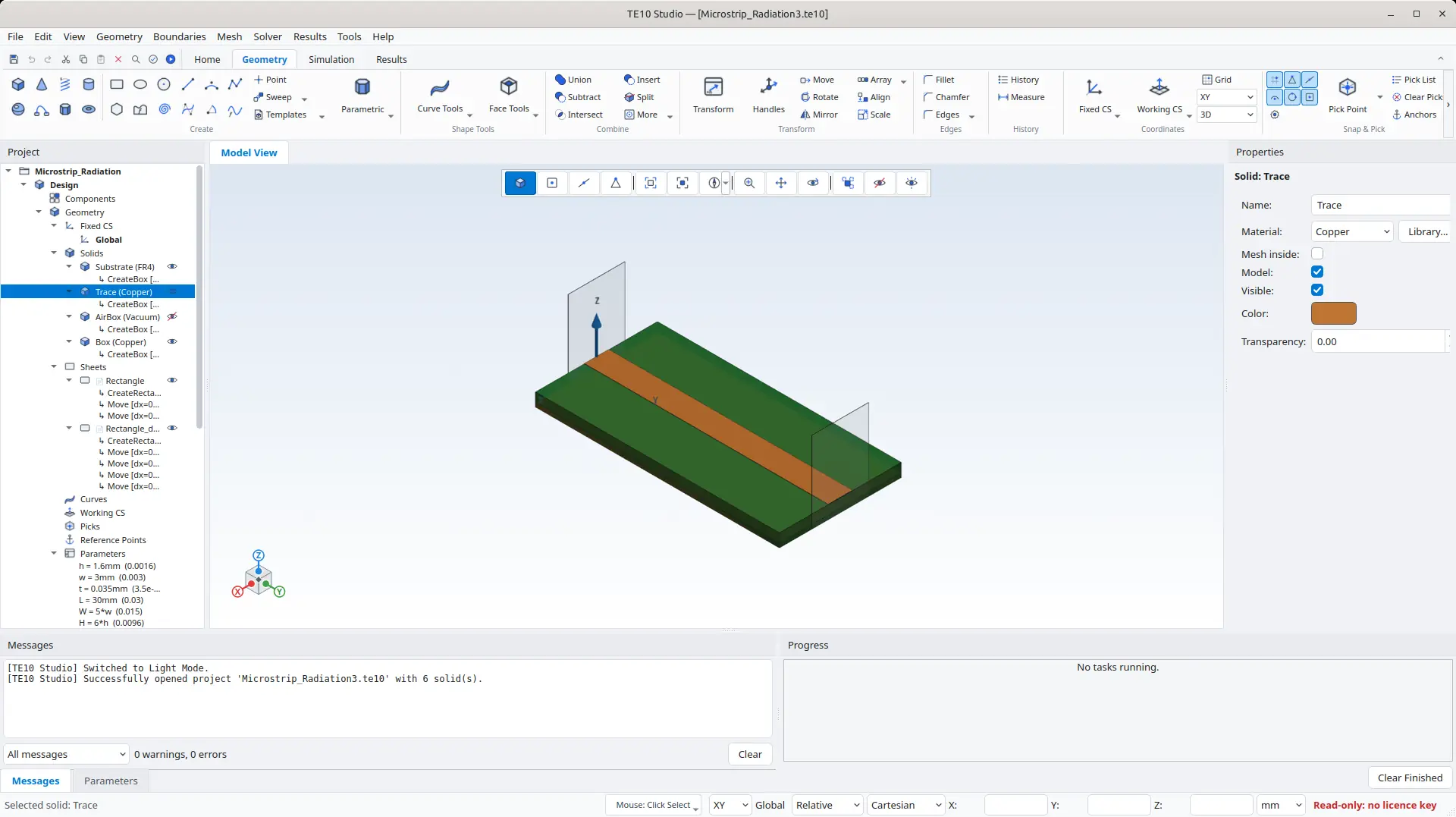
| Part | Where | What it does |
|---|---|---|
| **Menu bar** | top | Every command, in File, Edit, View, Geometry, Boundaries, Mesh, Solver, Results, Tools and Help |
| **Quick bar** | left of the ribbon tabs | Save, Undo, Redo, Cut, Copy, Paste, Delete, Find Command, Check Model and Run |
| **Ribbon** | below the menus | The commands you use most, on four tabs: Home, Geometry, Simulation, Results |
| **Project** | left | The project tree: geometry, materials, boundaries, ports, mesh, solver setups and results |
| **Model View** | middle | The 3D view. Other tabs open next to it, such as **S-Parameters** |
| **Properties** | right | The settings of whatever is selected; change them here |
| **Messages**, **Parameters**, **Python Console** | bottom left | The log, the design parameters, and a Python prompt |
| **Progress** | bottom right | Running meshes, solves and jobs, with a Stop button each |
| **Status bar** | bottom | Mouse style, drawing plane, coordinate system, typed coordinates and units |
Panels can be moved, floated or closed. **View › Panels** shows a closed one again, **View › Window Layouts...**
saves and restores arrangements, and **View › Minimize Ribbon** (Ctrl+F1) folds the ribbon
away. **View › Theme** switches between light and dark.
## Ribbon tabs
### Home

Project files (new, open, save, templates, archives), **Import / Export**, **Settings** (units, the
material library, parameters), **Scripting** (Run Script, Python Console), **Macros** (the
[RF tools](/docs/app/rf-tools)), window commands, and **Help** (About, Account).
### Geometry

| Group | Commands |
|---|---|
| Create | Solids (box, cone, helix, cylinder, sphere, bondwire, polyhedron, torus), sheets (rectangle, ellipse, circle, polygon, equation surface, spiral), curves (line, arcs, polyline, spline, equation curve), Point, Sweep, Templates, Parametric shapes |
| Shape Tools | **Curve Tools** and **Face Tools** pop-ups |
| Combine | Union, Subtract, Intersect, Insert, Split, and More (Imprint, Split with Picked Face, Separate Bodies, Section) |
| Transform | Transform (typed values), Handles (drag in the view), Move, Rotate, Mirror, Array, Align, Scale |
| Edges | Fillet, Chamfer, and more edge tools |
| History | Feature History, Measure |
| Coordinates | **Fixed CS** and **Working CS** pop-ups, and the drawing plane |
| Snap & Pick | Snap types, picks, the pick list, anchors |
See [Building geometry](/docs/app/geometry).
### Simulation

| Group | Commands |
|---|---|
| Problem | The solution type (Driven, Eigenmode, Electrostatic, Magnetostatic, Transient, RLGC) and **Frequency Range** |
| Open Space | **Air Box**, **Face Boundary**, **Box Boundaries**, **Surrounding Medium**, **Symmetry** |
| Ports & Sources | **Ports** (on faces), **Point Port**, Floquet Port, Plane Wave, More Ports |
| Monitors | Saved Field, Voltage Monitor, Current Monitor, Probe, **Far Field** |
| Mesh | **Global Mesh**, Mesh Rules, Generate Mesh, Show Mesh |
| Setup | Solver Setup, Add Setup, Parameter Sweep, Optimize |
| Run | **Check Model**, **Run**, Cancel, and where the solve runs (**On: This computer ▾**) |
| HPC | **Remote**: Connect Cloud, Submit Job, Job Monitor, Job Options, Add Cluster, Cluster Profiles |
See [Ports and boundaries](/docs/app/ports-boundaries), [Mesh](/docs/app/mesh) and
[Solver setup and running](/docs/app/solving).
### Results

S-parameters and reports, Touchstone import, field plots, monitor results, far-field patterns and cuts,
RCS, Floquet results, RLGC, convergence, the solver log, and quantum EPR. See [Results](/docs/app/results).
## Find Command
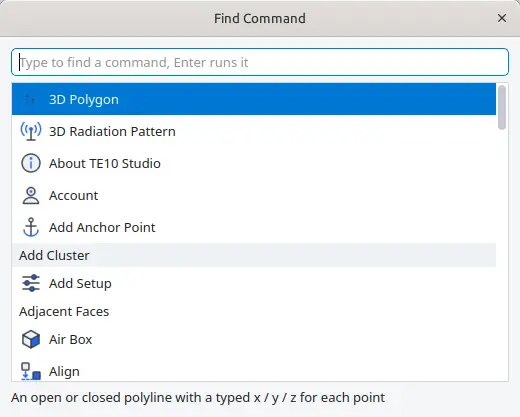
Press Ctrl+K (or the magnifier on the quick bar), type part of a command's name or
what it does, and press Enter. This is the quickest way to reach any command, including ones
you don't know the place of.
## The project tree
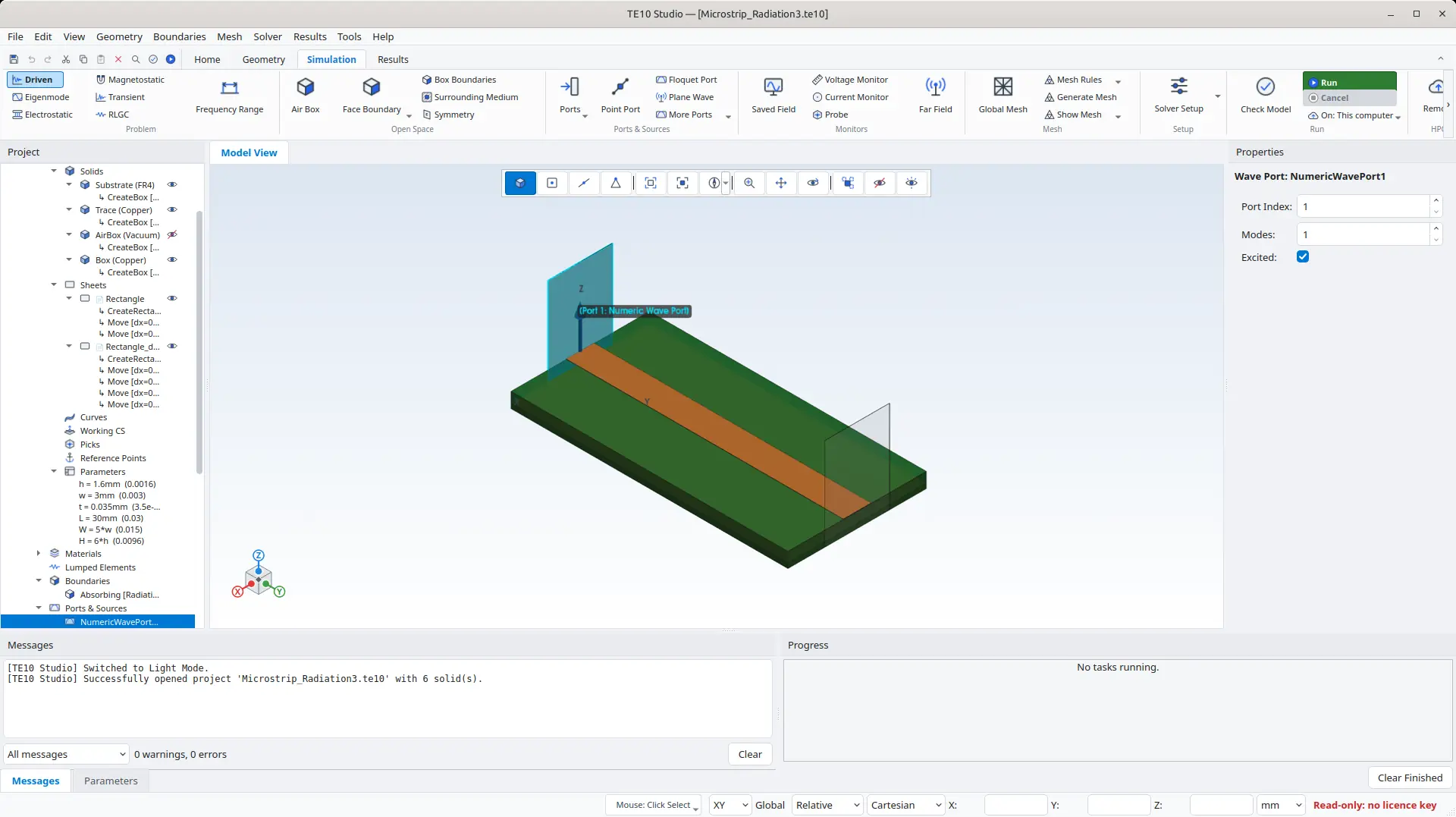
The tree lists everything in the project. Click an item to select it and show its settings in
**Properties**; double-click to open its dialog; right-click for its commands.
| Node | Holds |
|---|---|
| **Geometry** | **Solids**, **Sheets** and **Curves**, each with its feature history underneath; **Fixed CS**, **Working CS**, **Picks**, **Reference Points**, **Parameters** |
| **Components** | Inserted [encrypted 3D models](/docs/app/geometry#encrypted-3d-models) |
| **Materials** | The project's materials; used ones first |
| **Lumped Elements** | R, L, C elements |
| **Boundaries** | PEC, PMC, conductivity, impedance, absorbing, periodic... |
| **Ports & Sources** | Wave, lumped, point and Floquet ports; plane waves |
| **Mesh** | Mesh rules, the initial mesh and the solver's adapted mesh |
| **Solver** | Setups and their frequency sweeps |
| **Parameter Sweeps** | Parametric sweeps and optimisations |
| **Results** | S-parameters, convergence and other results of the last solve |
| **Port Modes**, **Field Plots**, **Far Field**, **Monitors** | Post-processing items |
The eye icon next to an object shows or hides it. Hidden objects are still part of the model.
## Properties
Select an object, port, boundary or setup and its settings appear in **Properties**. Change a value and
press Enter; every change can be undone with Ctrl+Z. For an object you
can rename it, change its material, its colour and transparency, whether it is part of the model, and its
mesh priority.
Values can be numbers, numbers with units (`3mm`, `120mil`, `2.4GHz`) or expressions of parameters
(`w/2 + 1mm`). See [Parameters](/docs/app/geometry#parameters-and-expressions).
## The 3D view
The bar at the top of the Model View holds the selection modes (Object, Face, Edge, Vertex), fit and
zoom, the standard views, and visibility commands. The orientation cube in the bottom-left corner turns
with the model: click a ball or face to look at that side straight on, an axis letter for that side's
view, the dark corner diamond for the isometric view, or drag the cube to rotate freely. The ring that
appears when the mouse is near rolls the view 90° per click (Ctrl+click the other way).
| Keys | Action |
|---|---|
| Ctrl+D / Ctrl+E | Fit all / fit the selection |
| Alt+1…4 | Top, front, right, isometric view |
| Alt+← / Alt+→ | Undo / redo a view change |
| O, F, E, V | Select objects, faces, edges, vertices |
| B | Select the next object behind the one under the mouse |
| Ctrl+H / Alt+H | Hide the selection / show everything |
| Ctrl+W | Wire frame |
| Shift+C | Cutting plane |
| P | Pick a point |
| W | Working coordinate system on / off |
| R | Measure a distance |
| Space | Repeat the last command |
| F5 | Run the solve |
**View › Display** has wire frame, bounding box, axes, orthographic projection, the cutting plane, and
**Export Image...** / **Copy View** for pictures of the view.
## Mouse and keyboard
**View › Mouse and Keyboard...** chooses the mouse style (see [Getting started](/docs/app/getting-started#first-start))
and lets you change any of it: which button and modifier rotate, pan, zoom and spin, the wheel direction,
zooming toward the pointer, and drag speed. The **Keyboard** tab lists every command with its key; type
in the key box to change one. **Restore Defaults** goes back to the preset.
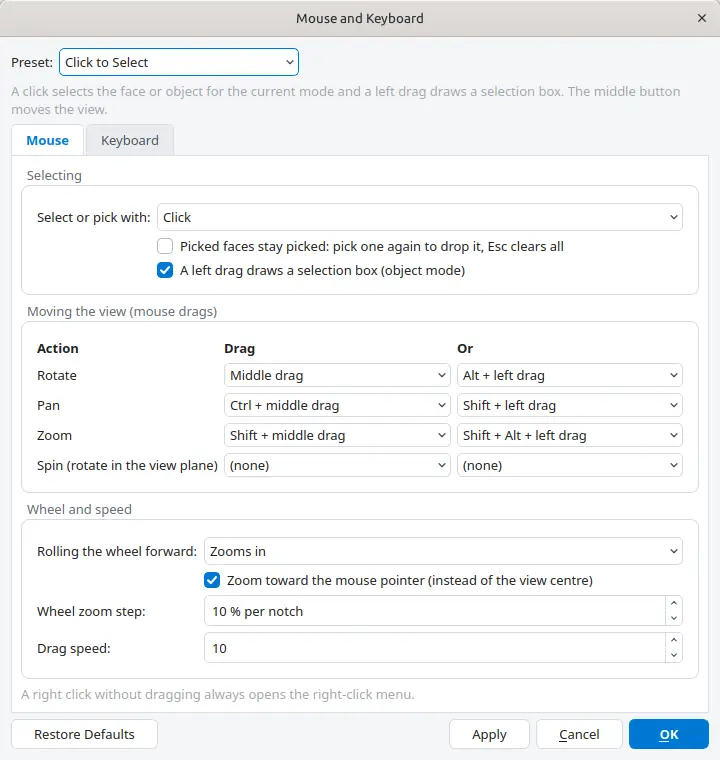
The status-bar button at the bottom (**Mouse: Click Select ▾**) switches the style quickly.
## Typed coordinates
While a drawing tool runs, the status bar's **X**, **Y**, **Z** boxes take typed coordinates: type a value,
press Tab for the next, and Enter to place the point. **Global / Relative** chooses
absolute coordinates or ones relative to the last point, and **Cartesian** can be switched to cylindrical
or spherical. The unit box sets the unit the boxes show.
## Undo and history
Every change to the model can be undone (Ctrl+Z) and redone (Ctrl+Y),
including changes made from the Python Console. The model's construction steps are kept in a history you
can edit later: see [Feature history](/docs/app/geometry#feature-history).